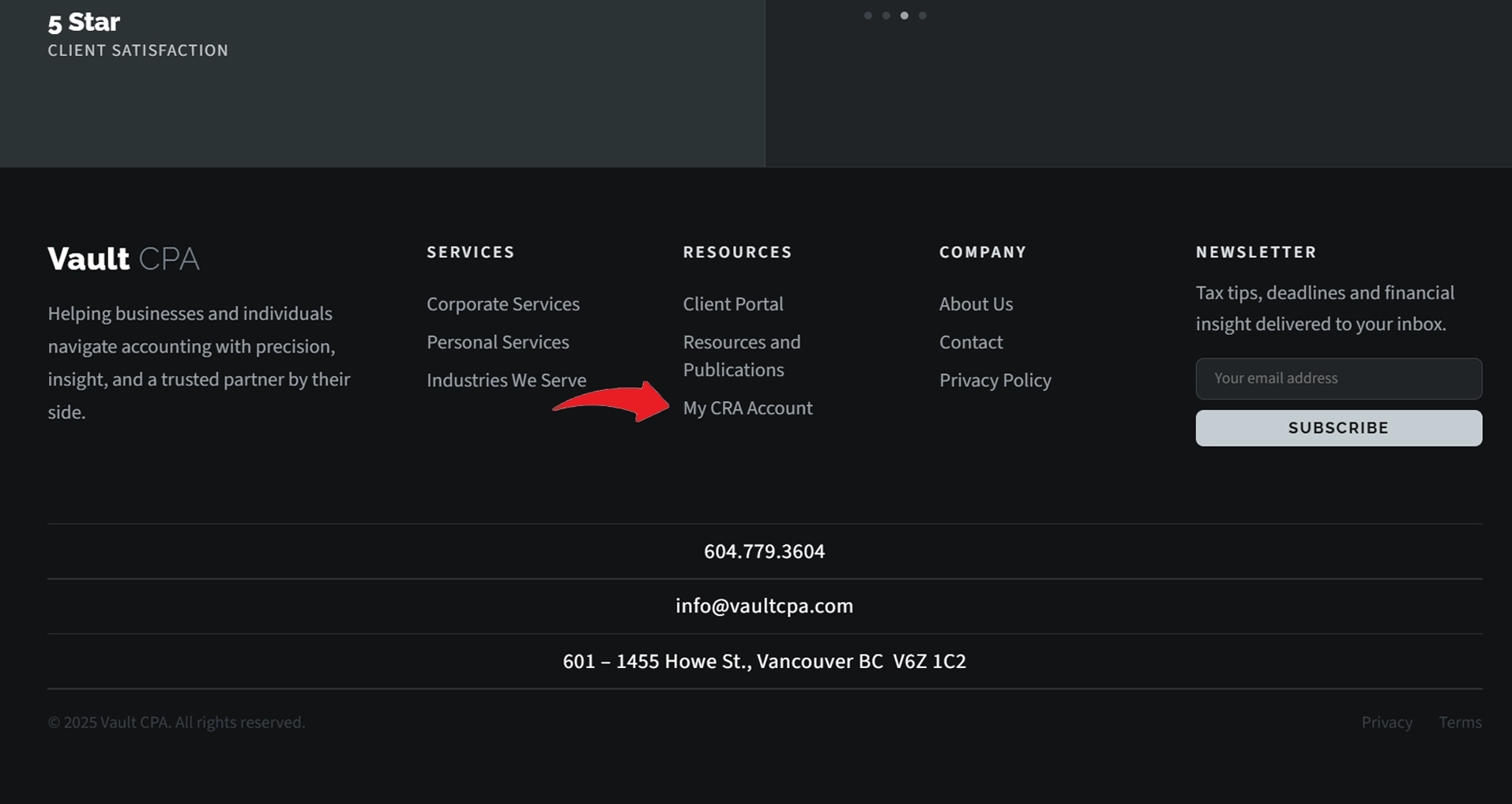
Scroll down on this page and click on "My CRA Account" — your system will open a new page
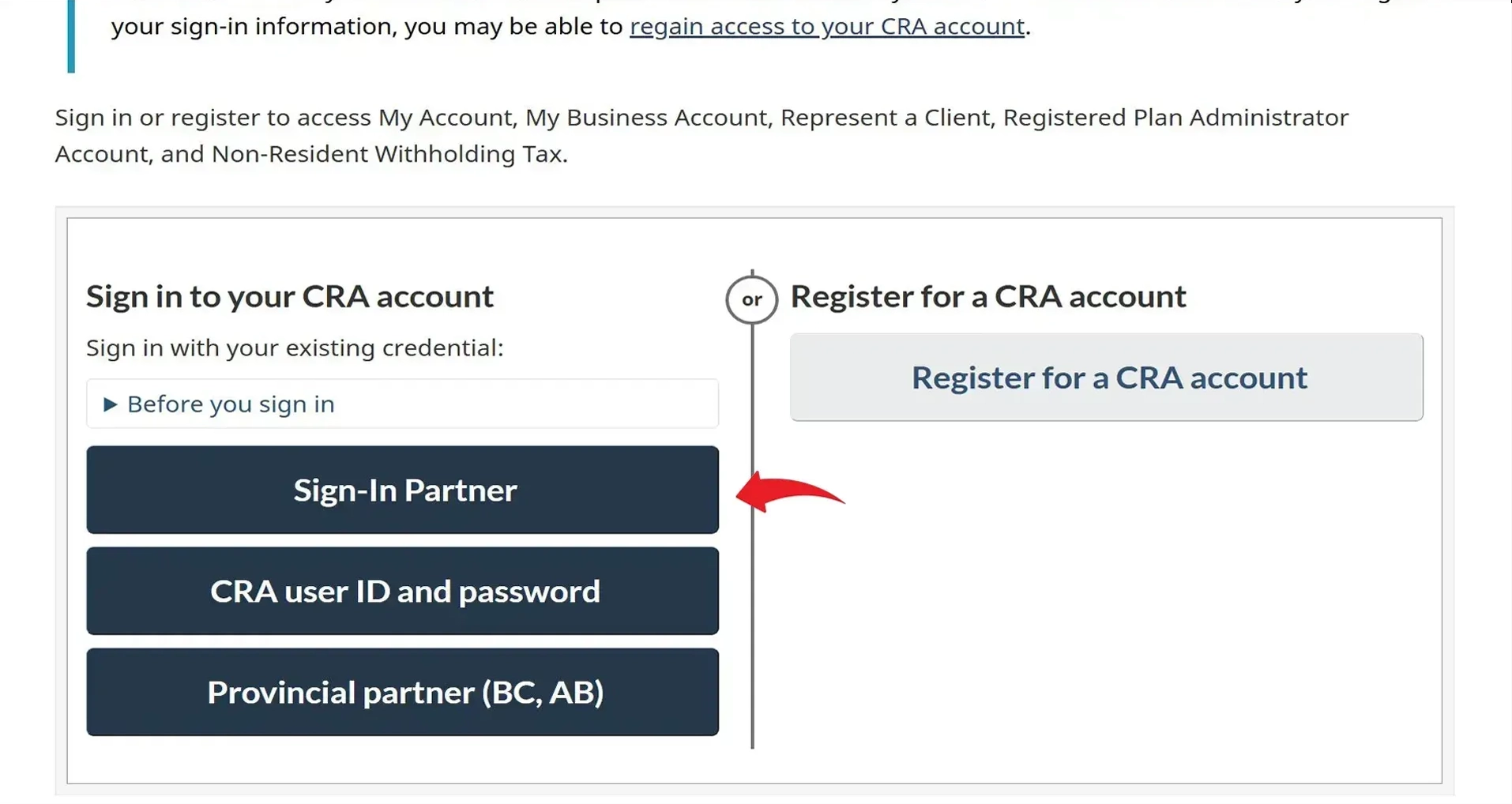
Scroll down and click on "Sign-in Partner"
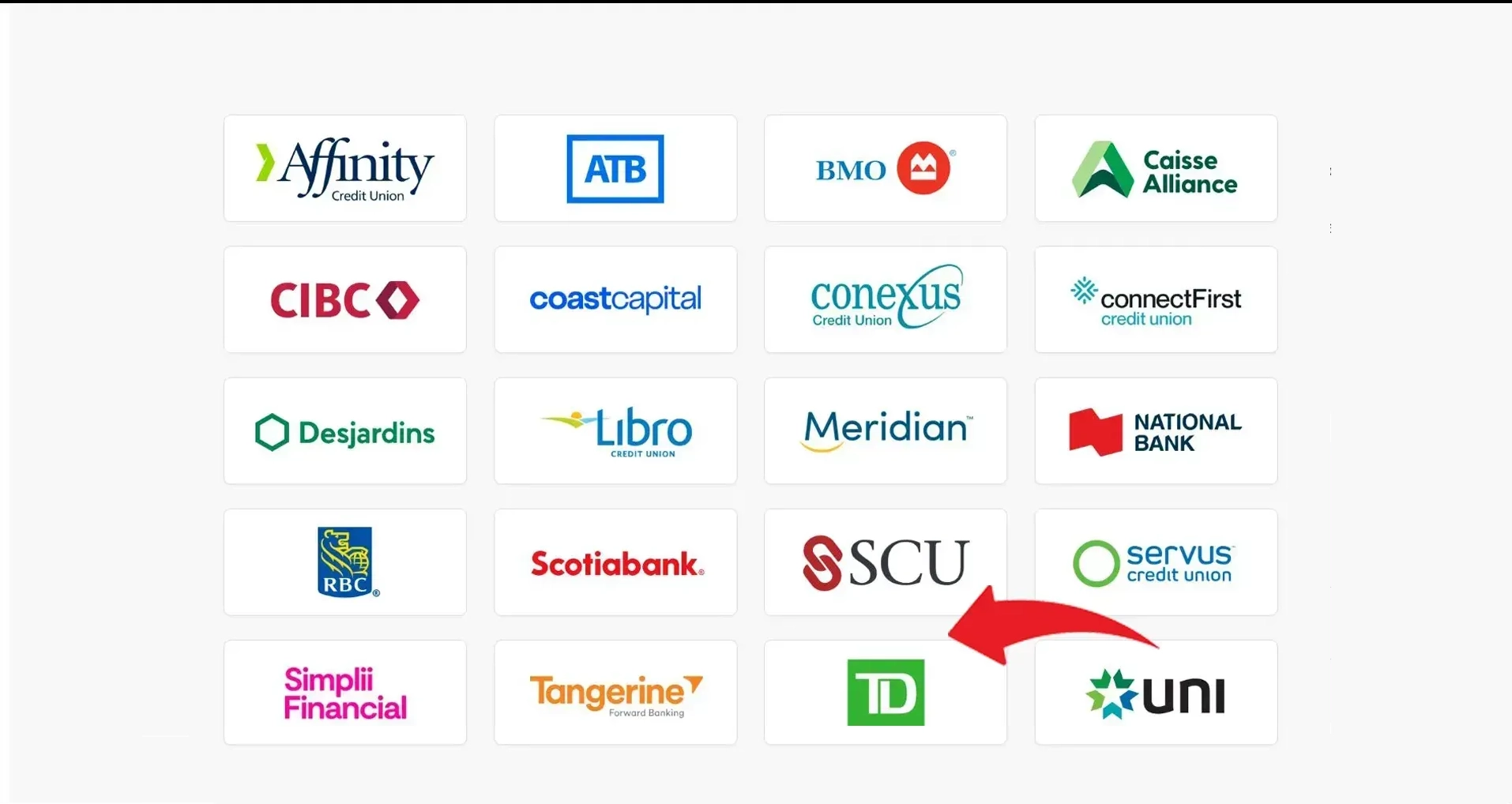
Find your own financial institution and click on it
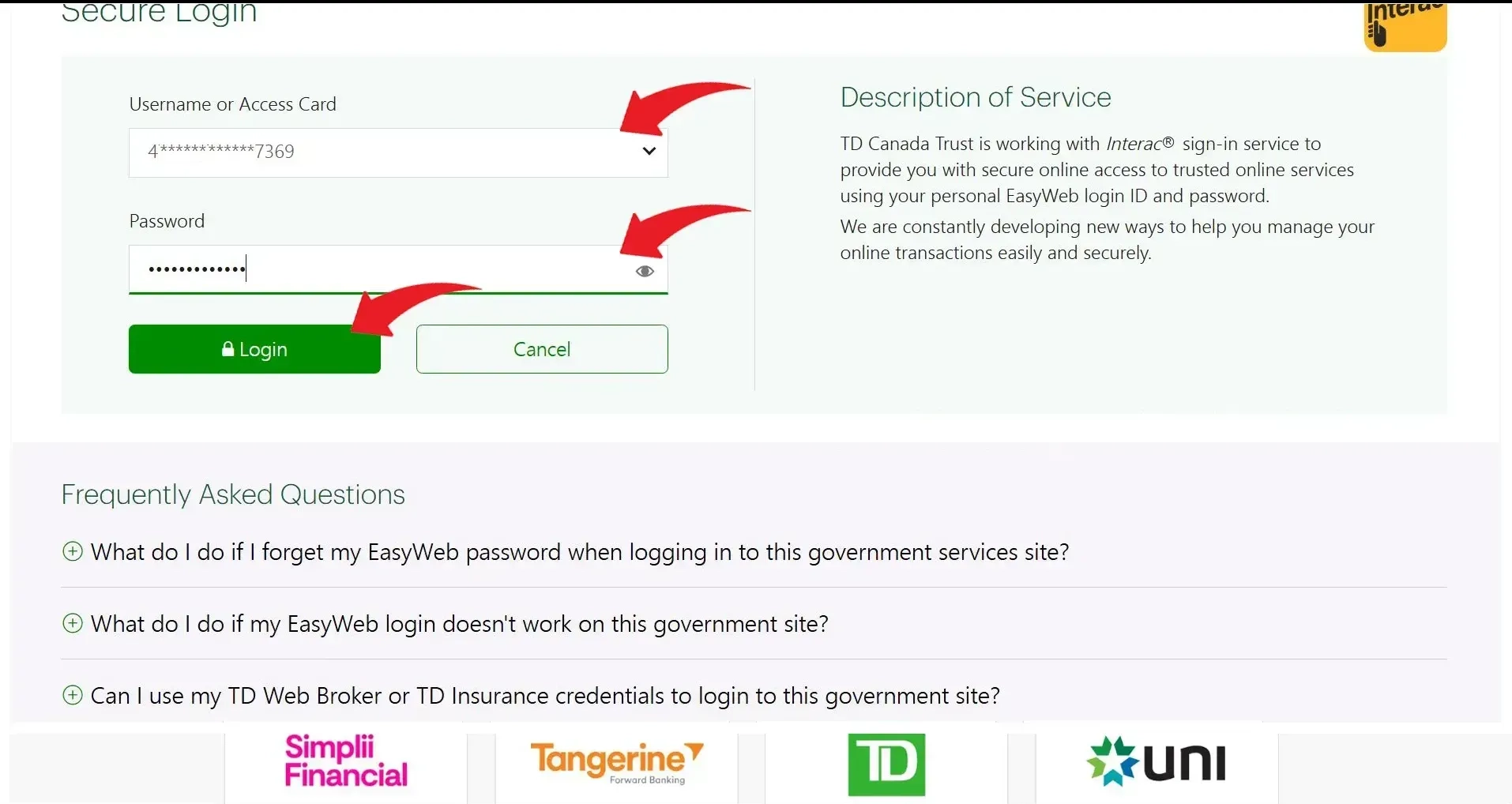
Enter your access card number, your password and then click "Login"
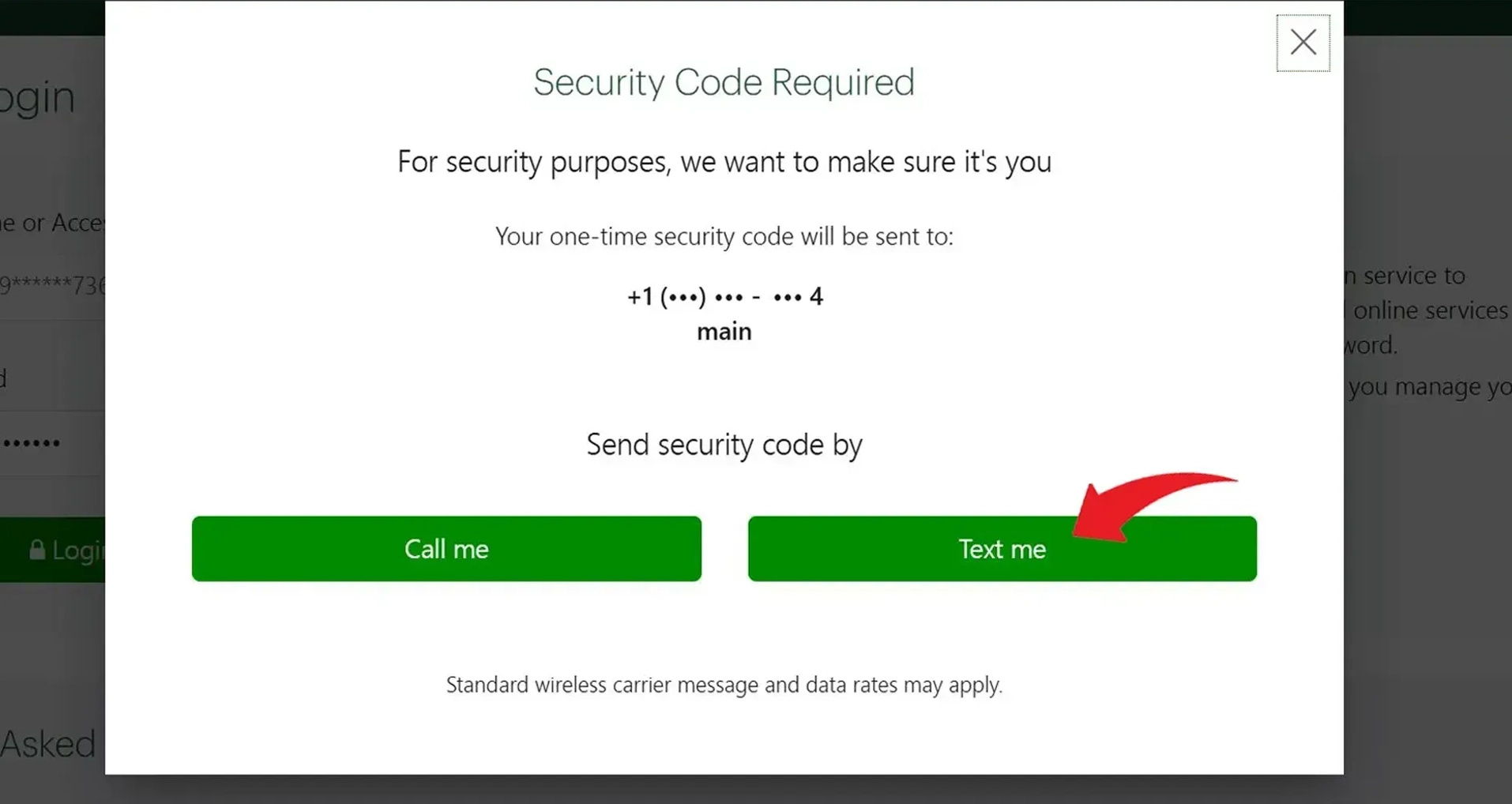
Click on "Text me" — your bank will send you an authorization code
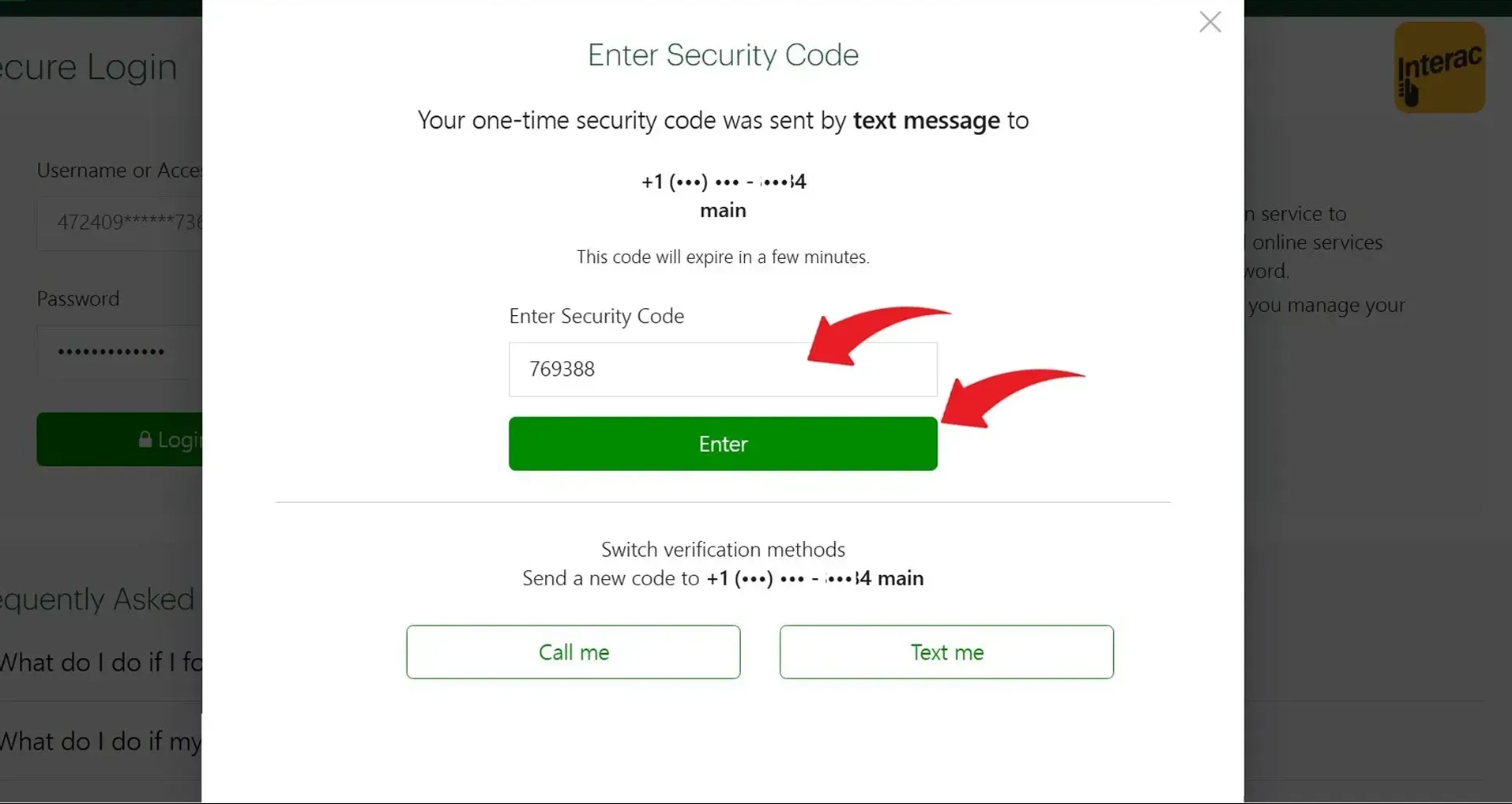
Enter the code and press enter
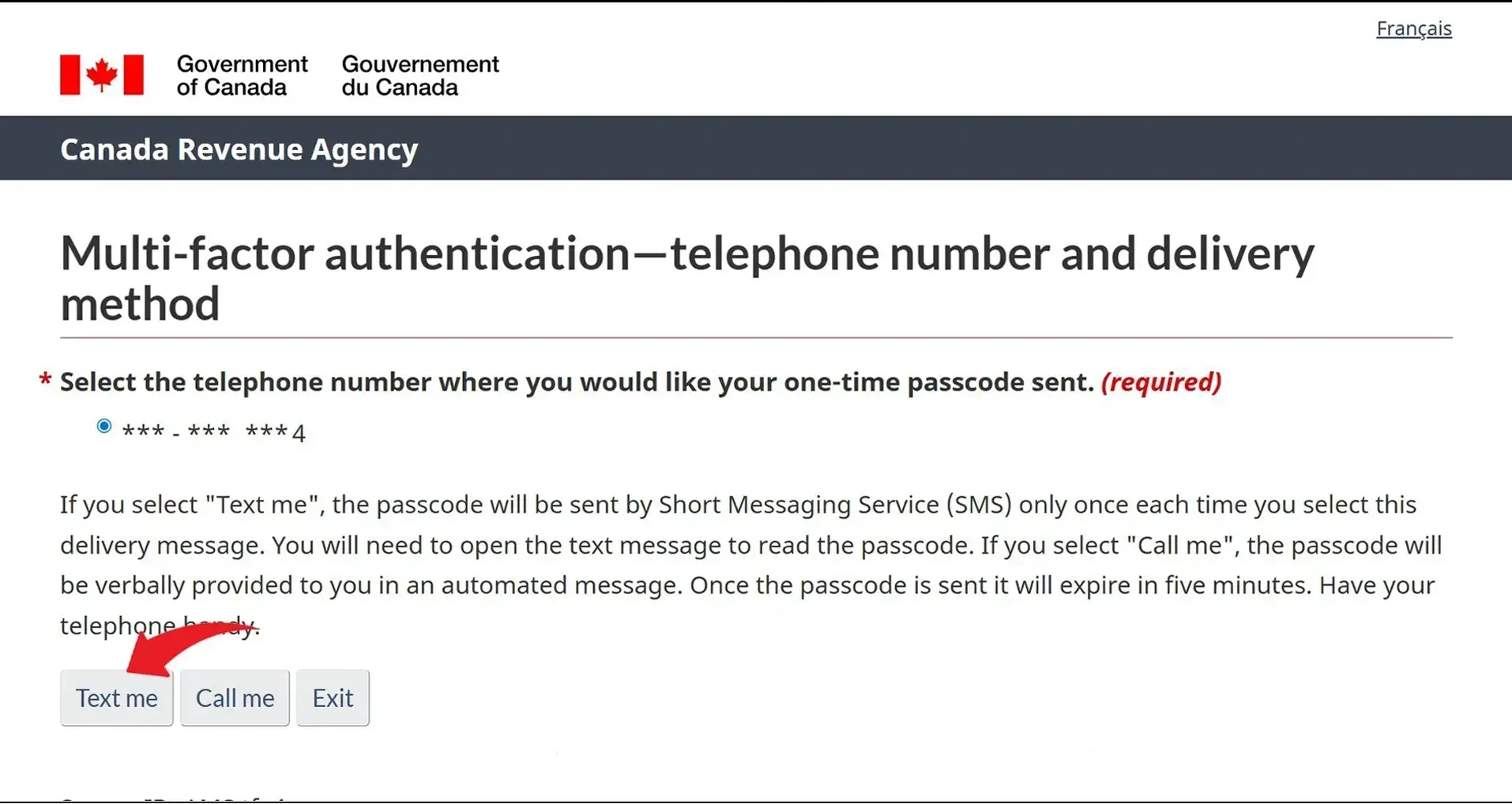
If you have two-step authorization set up, you will see this page. Click on "Text Me" and the CRA will send you a code. Otherwise move on to the next slide
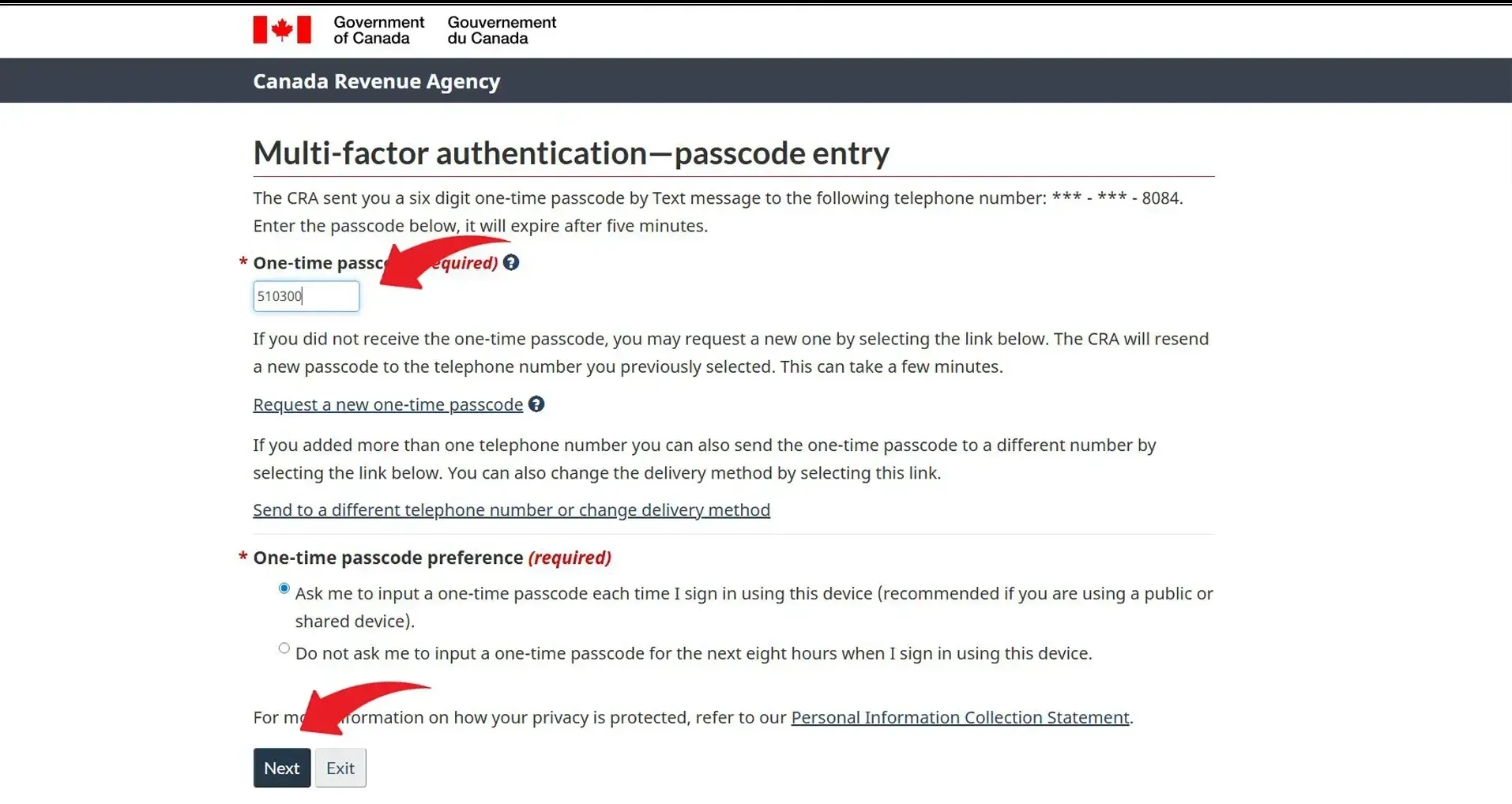
Enter the code and click on "Next"
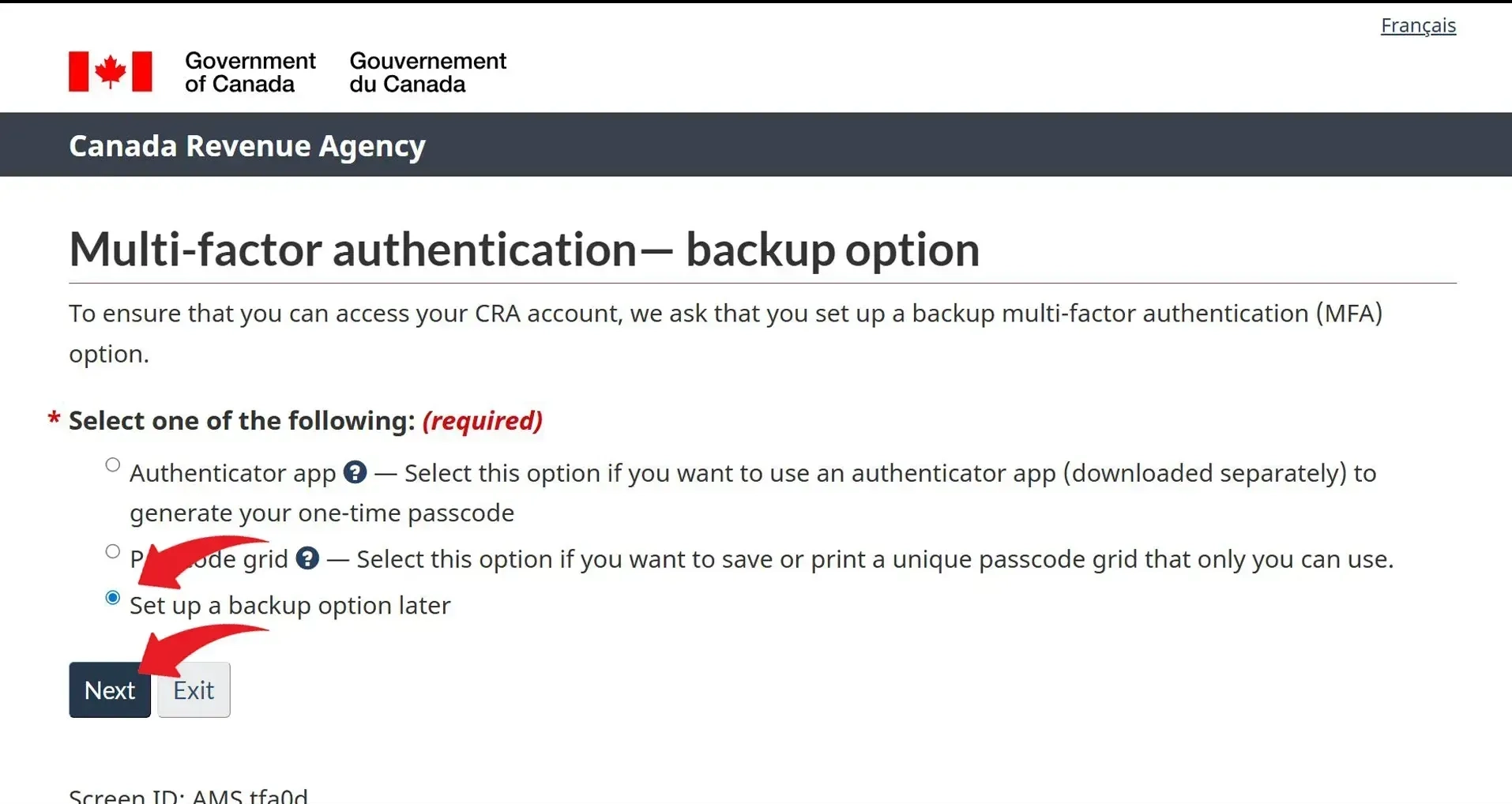
If you see this page, click on "Set up backup option later" and then click "Next". Otherwise move on to the next slide
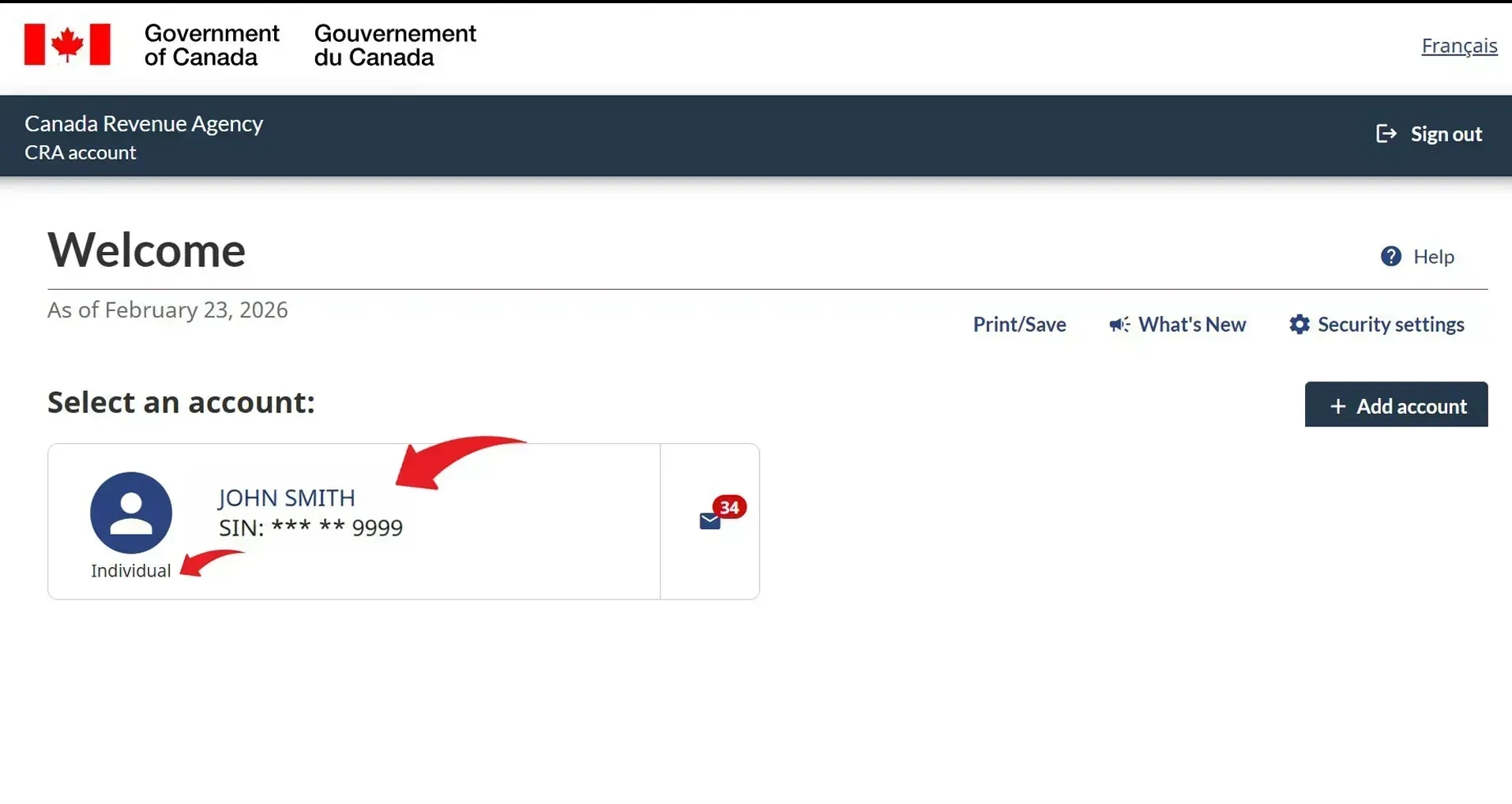
If you are authorizing us for your business, click on the name of your business. If you are authorizing us for your personal account, click on your own name.
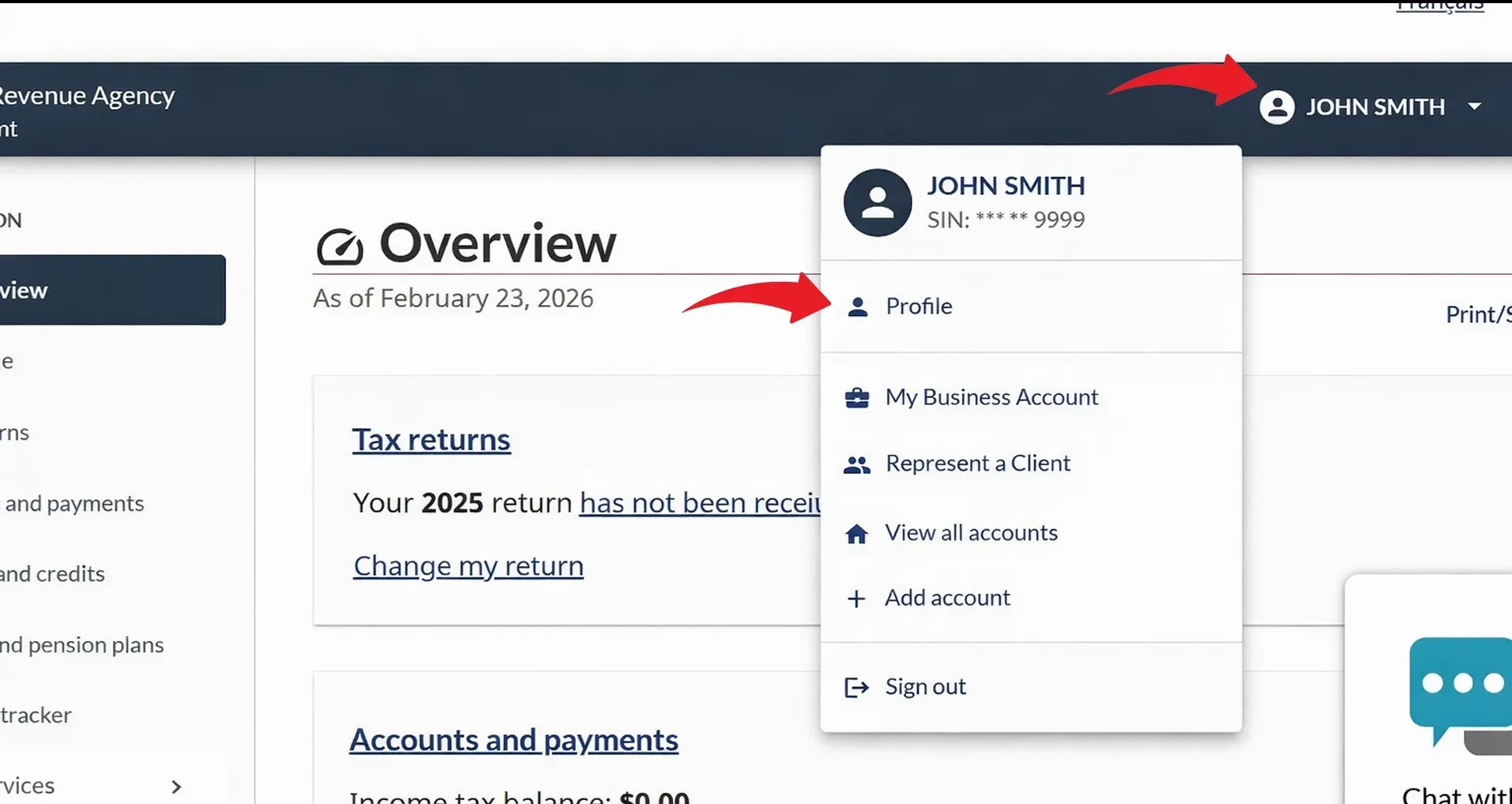
If you selected your business, your business name will show on the top right instead of your personal name. Either way, click on the name shown and when the menu opens, click on "Profile"
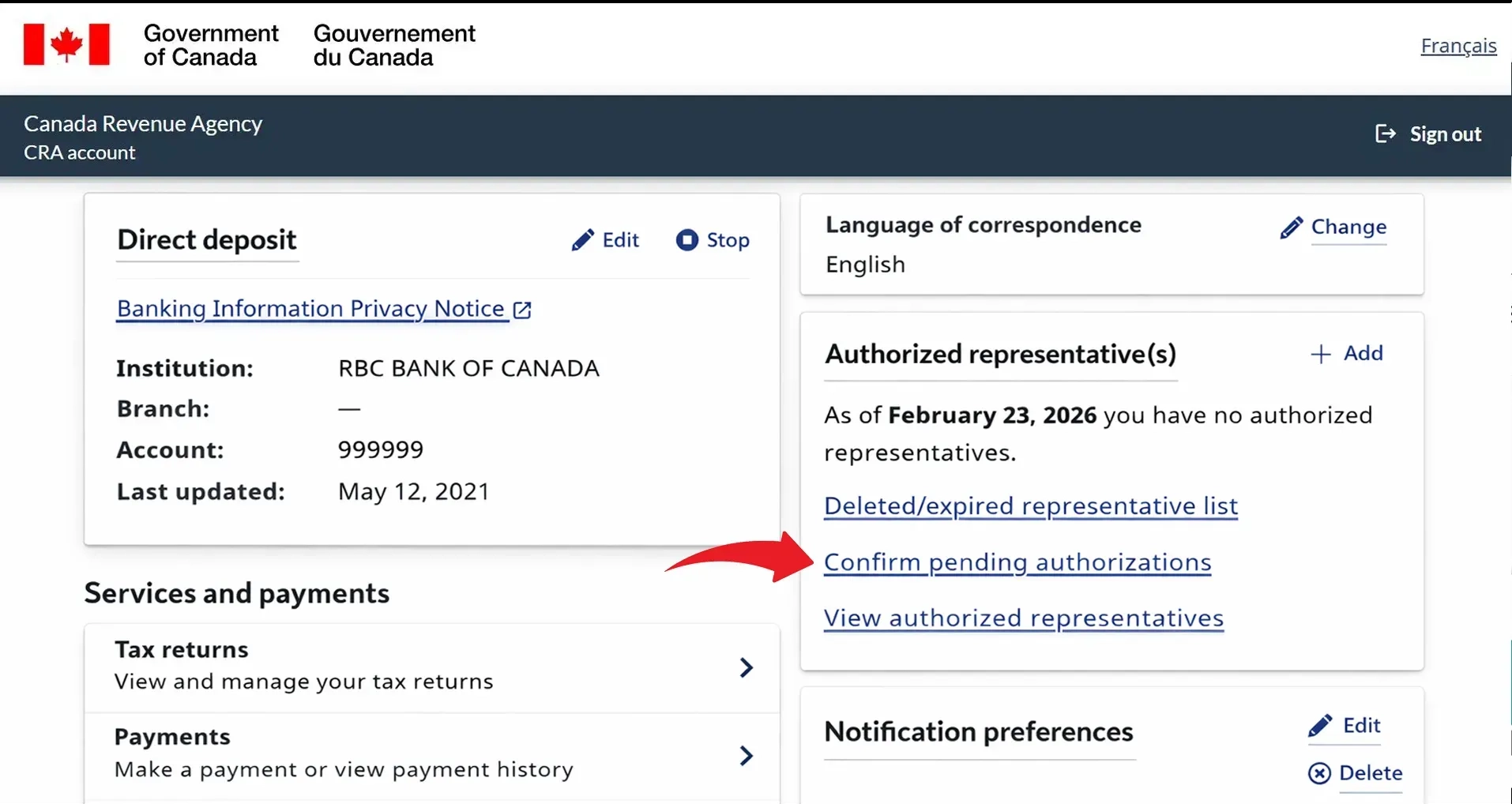
On your profile page, find the "Authorized representative(s)" panel and click "+ Add"
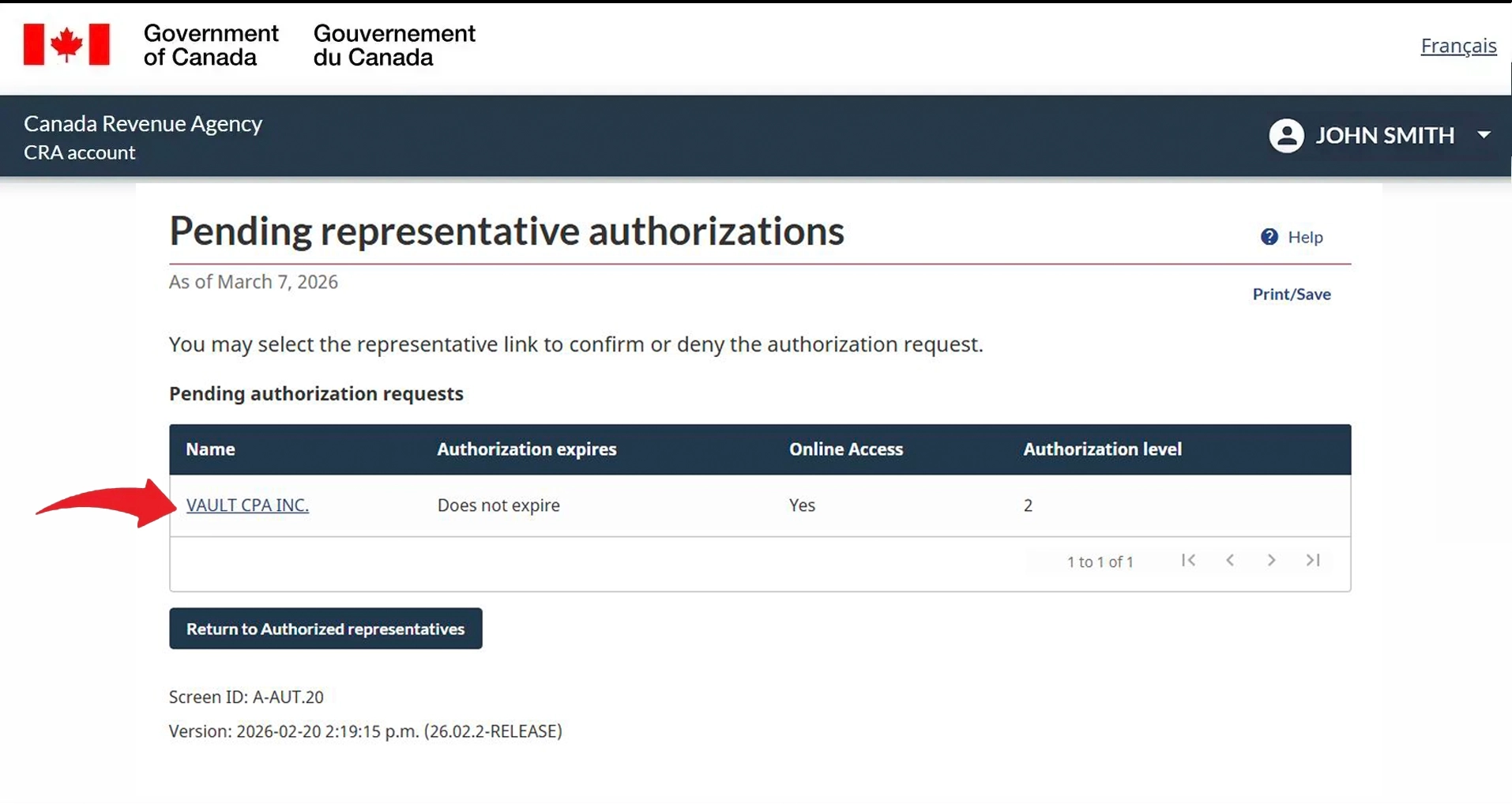
Read the "Before you begin" notice, then click "Start"
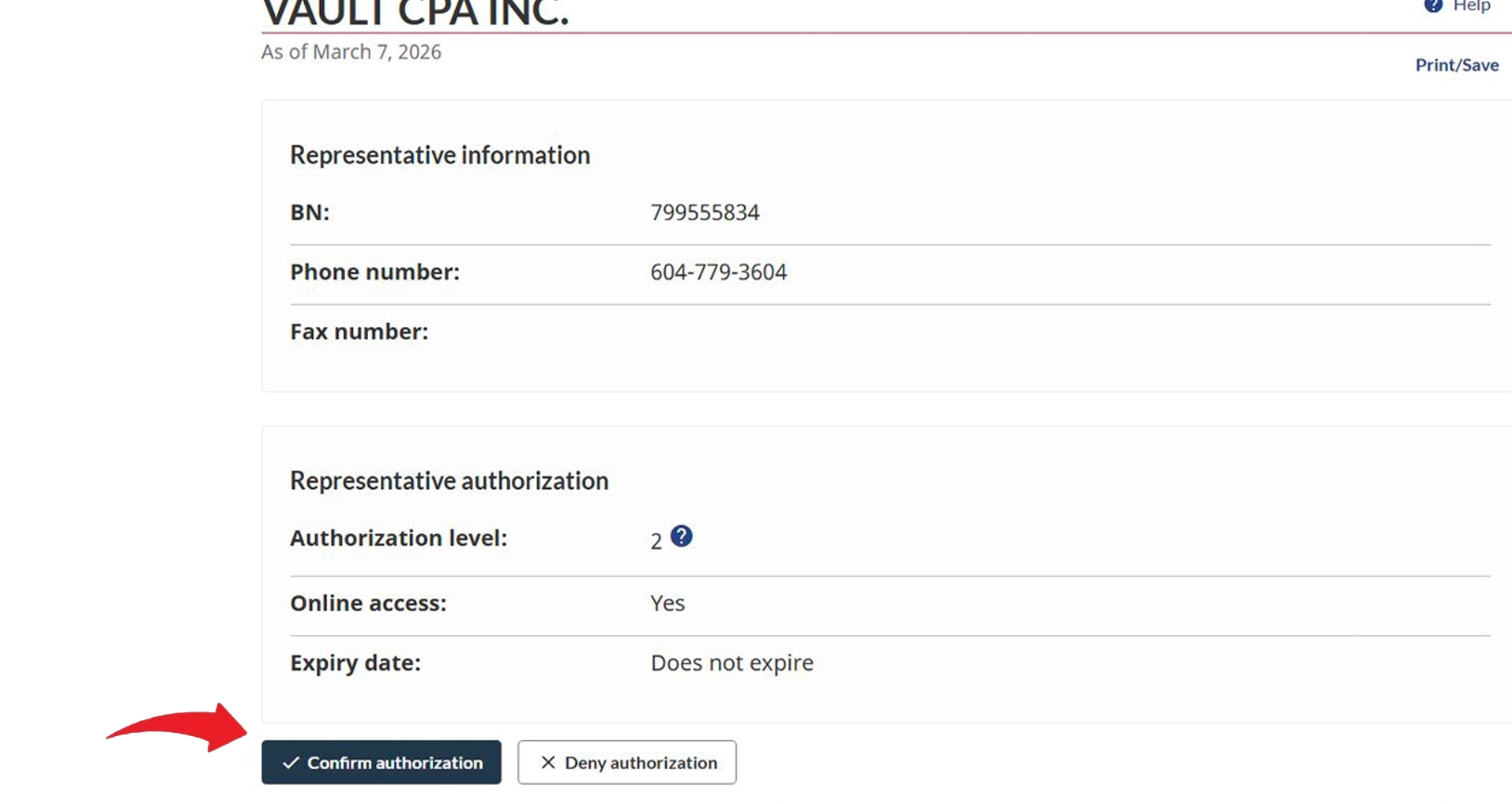
In the "RepID, GroupID or BN" field, enter our Business Number 799555834 and click "Search"
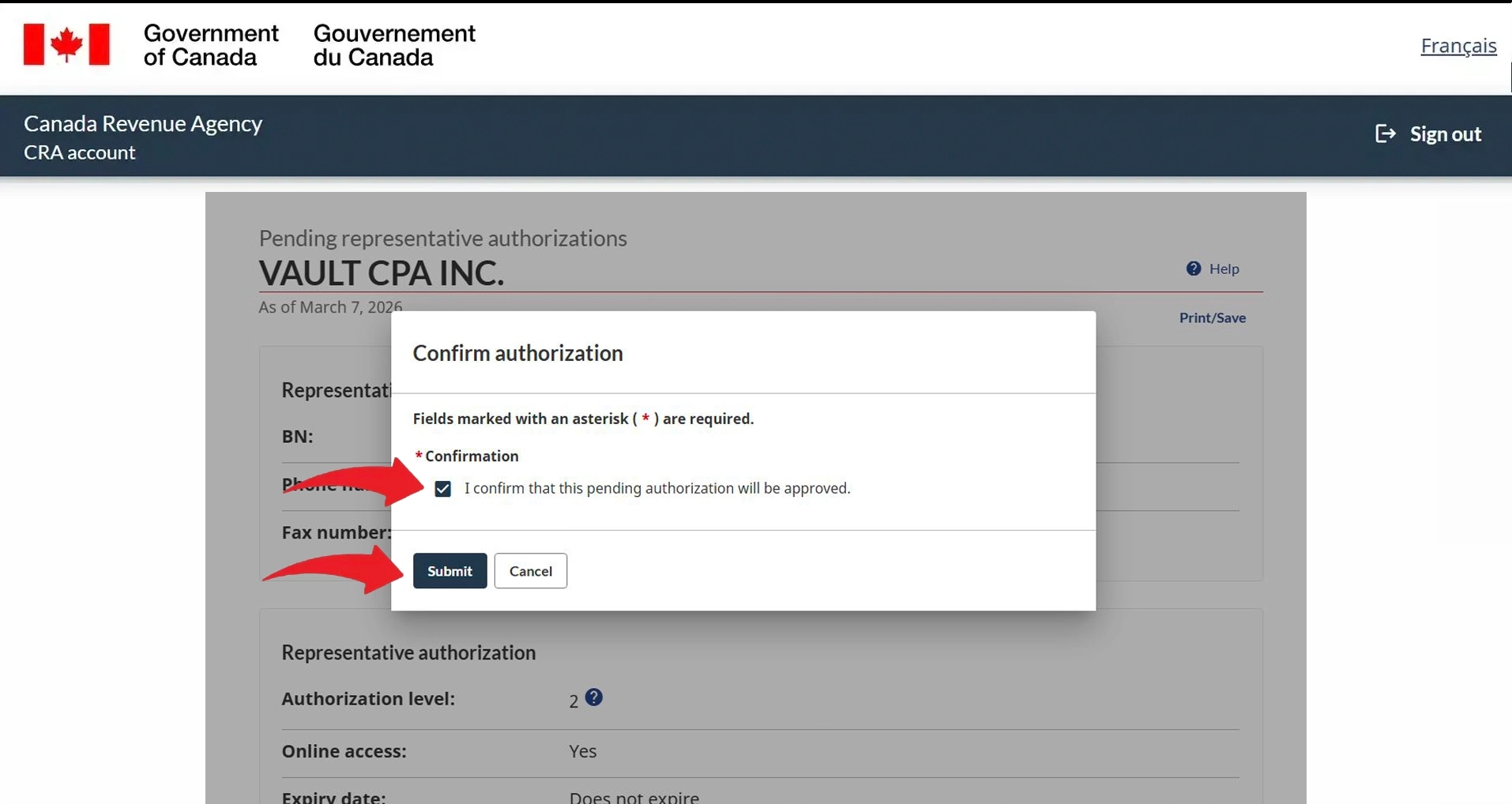
Confirm the name shown is "VAULT CPA INC." and click "Next"
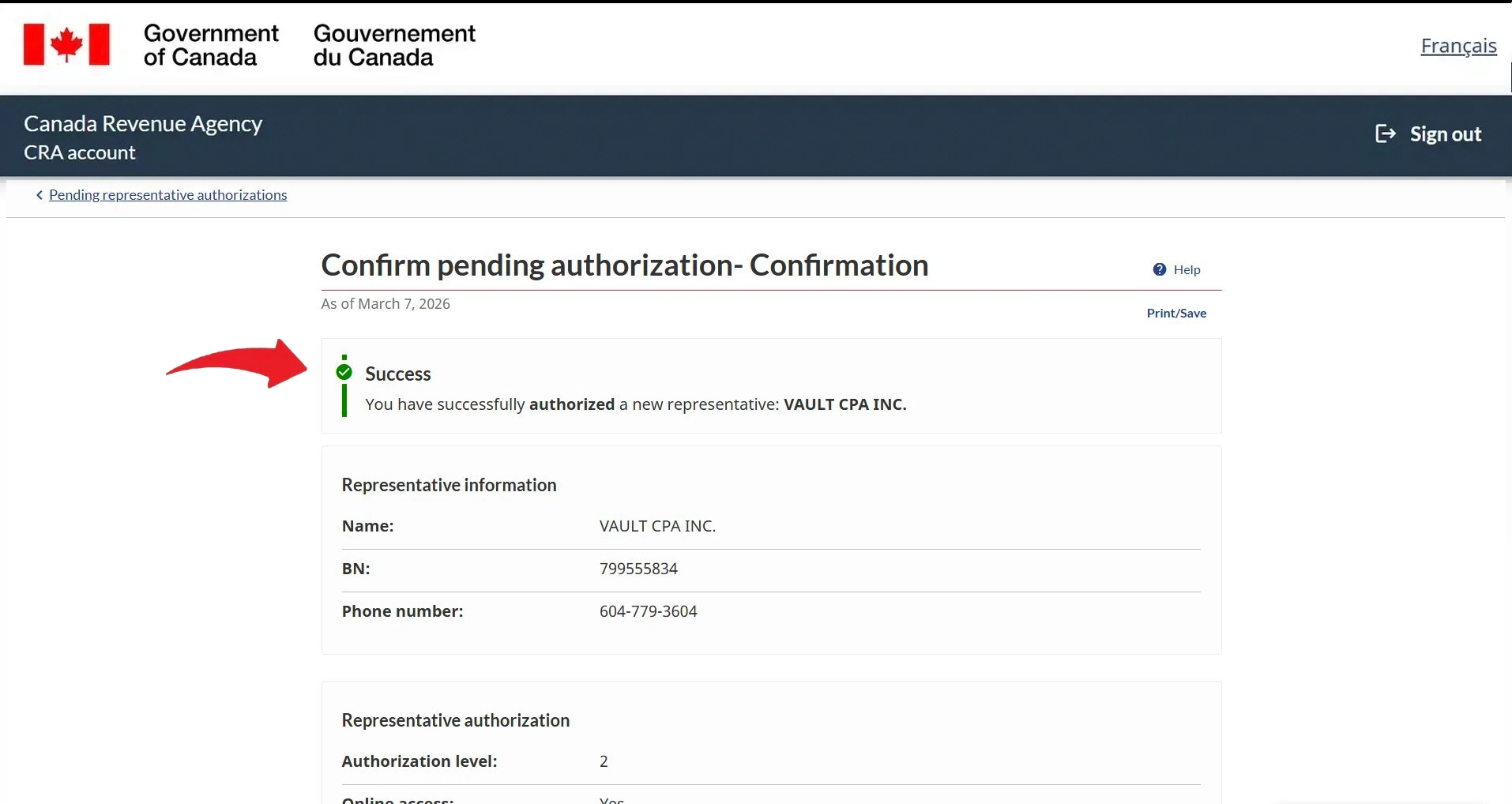
Select "Level 2", choose "Yes" for online access, tick "Does not expire", then click "Next"
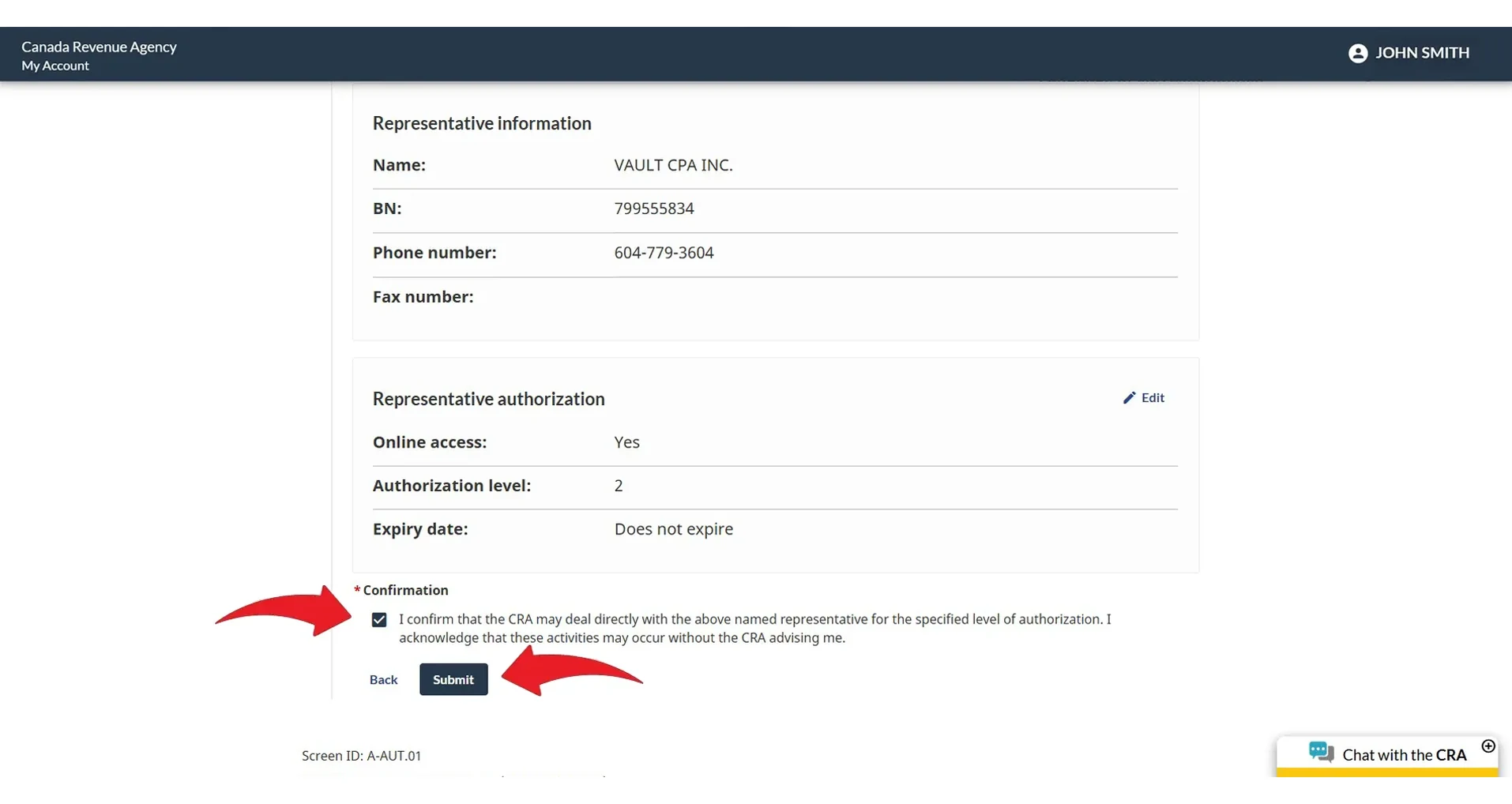
Review the details, tick the confirmation box, and click "Submit"
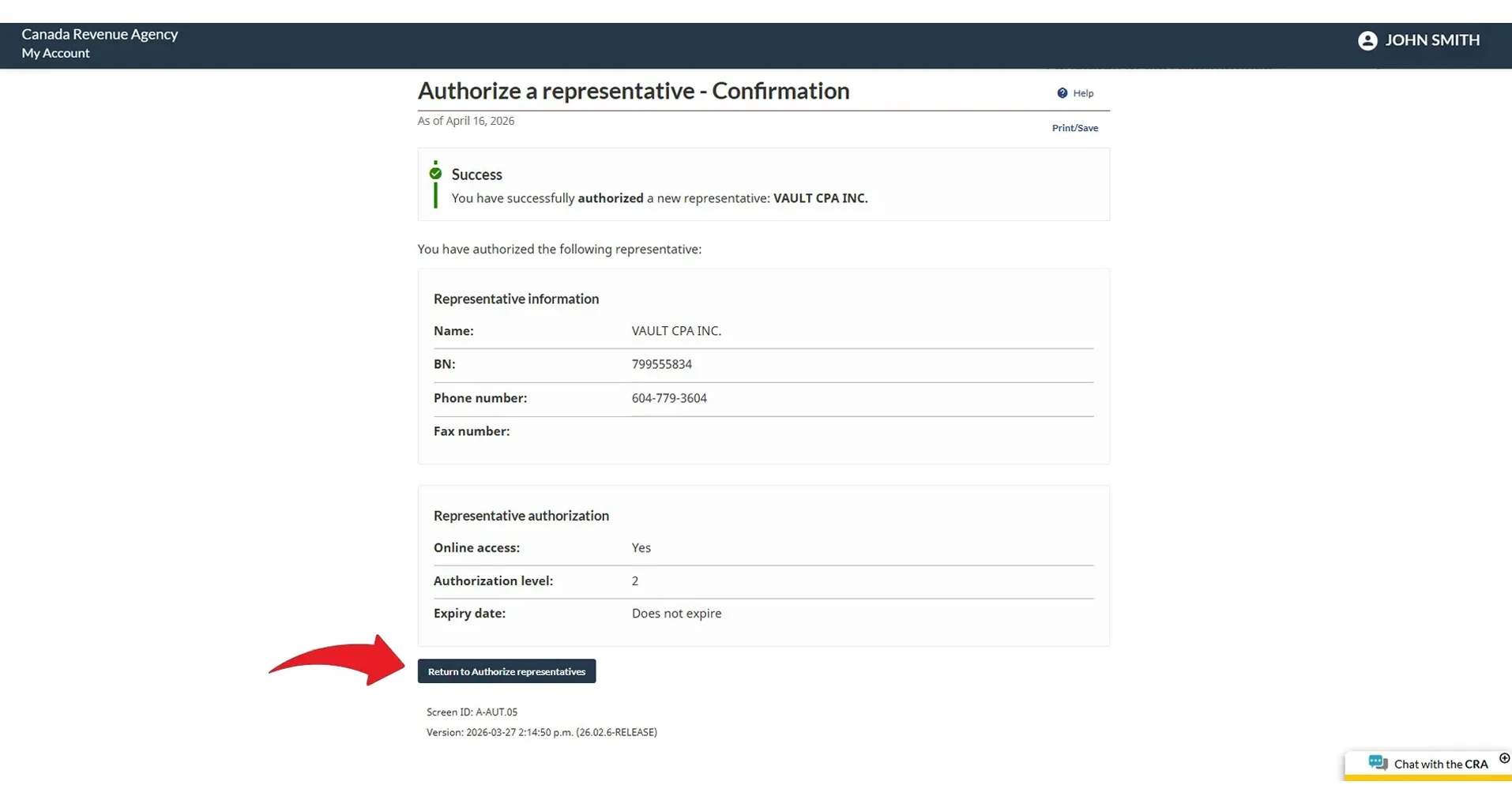
You'll see a green "Success" message — your authorization is complete
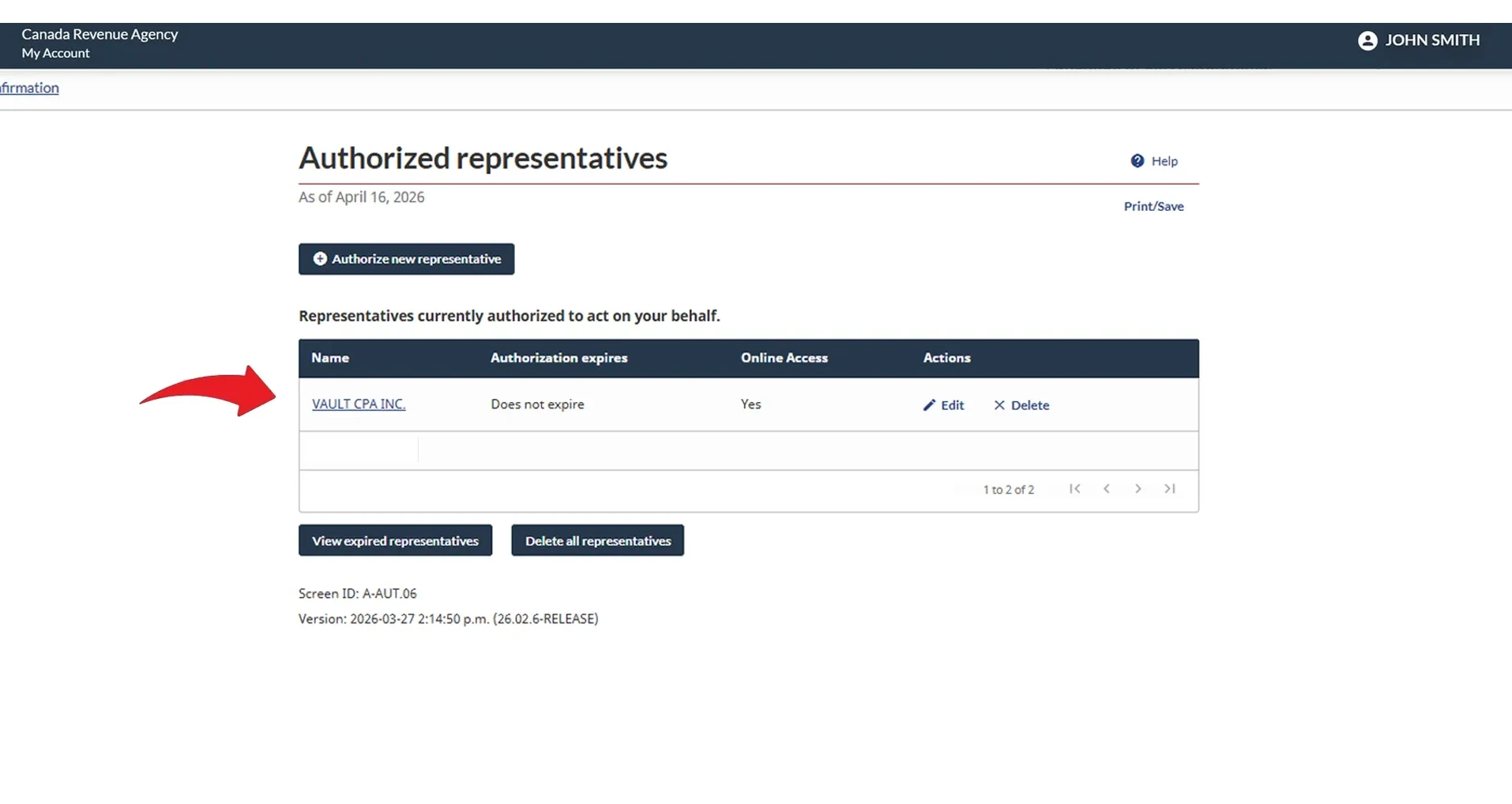
"VAULT CPA INC." will now appear in your authorized representatives list. You're all done!